
Perform the order
When the order is accepted, the order is now moved to your “My orders”. If you click on it, you are now able to see (and click on) customer’s contact info.
Order information
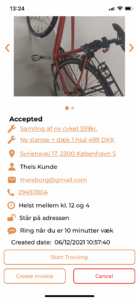 If you click on the email – your phone will create and open an email you can send to the customer, if you have an email account set up on your phone.
If you click on the Phone symbol, your phone will create an sms to your customer. If you click on the phone number itself – you can call the customer.
From this point, you are expected to be responsible for the communication with the customer, and the performance of the order.
Please use these functions if you for example need to ask the customer something about the bike, you are late to the appointment, or you need to change the time etc.
“Start tracking”
The button “Start tracking” does not function while writing this, but will soon function in that way that if you click it – customer will be notified that you are on your way, and they can also “see you Running” on a map (much like an Uber, take away or taxi being on their way to your location).
Cancel order
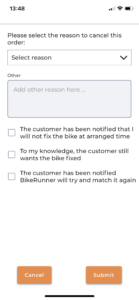
When you have accepted an order, you can also cancel it. Please fill out the reasons here, so that BikeRunner support knows how to handle this order. Always please write a comment.
Please make sure that you let both BikeRunner and customer know in good time if you for some reason have to cancel the order because of you.
When you are finished with the order, you click on the button “Create invoice”.